
Many QuickBooks users enter transactions consistently but still feel uncertain about whether their numbers are truly accurate.
You may see a Profit & Loss report that looks reasonable, but you still wonder if it reflects reality.
That uncertainty often leads to an important question: what is reconciling in QuickBooks and why does it matter if everything already looks “fine”?
Reconciling is one of the clearest ways to confirm that the information inside QuickBooks matches what actually happened in your bank or credit card account.
It is not about making QuickBooks look organized. It is about verifying accuracy so that the reports you rely on reflect real financial activity.
When you understand reconciliation, you understand one of the main reasons QuickBooks data can be trusted over time.
What Is Reconciling in QuickBooks?
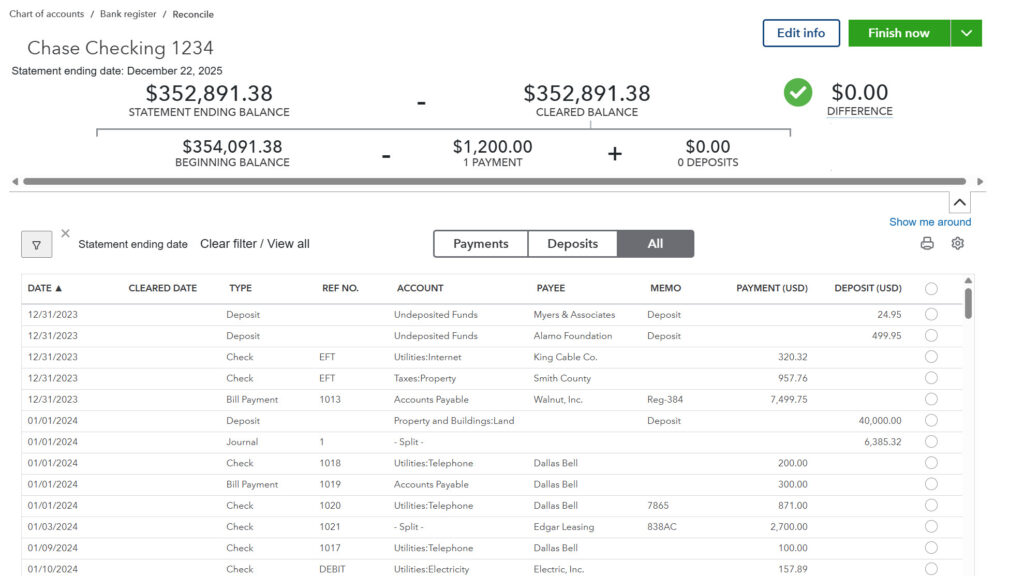
Reconciling in QuickBooks is the process of comparing the balance in a QuickBooks account to an external record, such as a bank statement or credit card statement,
to confirm that both reflect the same ending balance for the same time period. The key idea is verification: you are confirming that the QuickBooks record matches
the real-world account record.
People sometimes assume reconciliation is an “accountant-only” step, but it is more accurate to think of it as a quality check.
Even when transactions are entered every day, small differences can still appear. A missing transaction, a duplicate entry,
or a timing difference can shift balances without being obvious at a glance. Reconciling helps you catch those issues before they quietly distort reports.
Reconciling is not the same as categorizing transactions. Categorizing focuses on where a transaction belongs.
Reconciling focuses on whether the complete set of transactions recorded in QuickBooks matches what cleared the bank.
That distinction is part of why reconciling in QuickBooks matters so much: it confirms completeness and accuracy rather than just organization.
What Does Reconciling Actually Check?
Reconciling checks whether QuickBooks contains the same cleared activity the bank or credit card account shows for a specific period.
It asks whether transactions that cleared the bank exist in QuickBooks, and whether they were recorded with the correct amounts and dates.
It also checks for the opposite problem: transactions sitting in QuickBooks that do not belong or that do not match what the bank shows.
At a practical level, reconciliation is a balance agreement test. If the ending balance in QuickBooks matches the ending balance on the statement for the same date,
that match signals that the underlying transaction list is likely complete and consistent with the bank’s record. If the balances do not match,
it signals that something needs review. The reconciliation process does not require you to guess where the problem is. It provides a clear signal:
the books and the statement are not aligned yet.
This is why reconciliation is often described as a foundation for trustworthy reporting. QuickBooks reports pull from the transactions recorded in the system.
If the underlying account activity is incomplete or mismatched, reports can look “reasonable” while still being wrong in meaningful ways.
Reconciling provides the external validation that helps confirm whether reports reflect reality.
Why Does Reconciling Matter?
Reconciling matters because it protects the accuracy of your bookkeeping over time. Many bookkeeping errors do not scream for attention.
They often show up as small differences that compound, such as duplicate expenses, missing deposits, or timing issues that never get corrected.
Without reconciliation, those issues can persist for months, making it harder to understand what changed and why.
Reconciling also supports confidence in decision-making. Businesses rely on reports to answer practical questions: How profitable are we?
Are we spending more than expected? Do we have enough cash to cover upcoming payments? Those questions require reliable numbers.
When you reconcile consistently, you create a system where the bank balance and the QuickBooks balance agree, which supports more confident reporting.
Another reason reconciling in QuickBooks matters is that it helps separate true financial issues from bookkeeping issues.
If a balance is off, reconciliation helps you determine whether the problem is in the real account activity or in how records were entered.
That clarity reduces confusion and prevents users from making decisions based on inaccurate data.
Why Do People Misunderstand Reconciling?
Reconciling is often misunderstood because it does not “feel” like progress in the way other QuickBooks tasks do.
Creating an invoice produces a visible output. Recording an expense feels concrete. Reconciling, by contrast, is a verification step.
When it goes smoothly, nothing dramatic happens. That can cause people to underestimate its importance.
Another common misunderstanding is expecting reconciliation to fix problems automatically.
Reconciliation does not correct errors by itself. It identifies whether the books agree with the bank and signals when they do not.
If users approach reconciliation expecting a magic repair button, the process can feel confusing or frustrating.
When users understand reconciliation as confirmation rather than correction, the purpose becomes much clearer.
People also misunderstand reconciliation when they rely heavily on automation without understanding what it is doing.
Automated matches and transaction imports can be helpful, but they still require oversight.
If transactions get duplicated, misapplied, or recorded inconsistently, the bank and QuickBooks can drift apart.
Reconciliation is the checkpoint that catches drift before it becomes a long-term problem.
What Happens When Accounts Aren’t Reconciled?
When accounts are not reconciled, confidence in the books gradually erodes.
The QuickBooks balance might not match the bank balance, and users often respond by avoiding the issue, hoping it resolves later.
Over time, that gap can widen, making it harder to determine what caused the difference in the first place.
Without reconciliation, users may start relying on workarounds instead of verification.
They may delete transactions to “make things match,” create entries without understanding them, or ignore reports entirely.
This turns bookkeeping into guesswork and makes QuickBooks feel unpredictable, even when the software is behaving consistently.
Reconciling exists to prevent that spiral by providing a clear process for confirming accuracy.
This is why the question “what is reconciling in QuickBooks and why does it matter?” has such a practical answer.
Reconciling matters because it is the point where QuickBooks stops being a list of entries and becomes a trusted set of financial records.
When accounts are reconciled, your balances and reports have a stronger foundation.
When accounts are not reconciled, uncertainty grows and problems become more expensive to resolve later.
Next Step
Reconciling plays a central role in maintaining accurate QuickBooks data.
Learning how reconciliation fits into a broader bookkeeping workflow helps ensure reports reflect reality and support confident financial decisions.